

Introduction
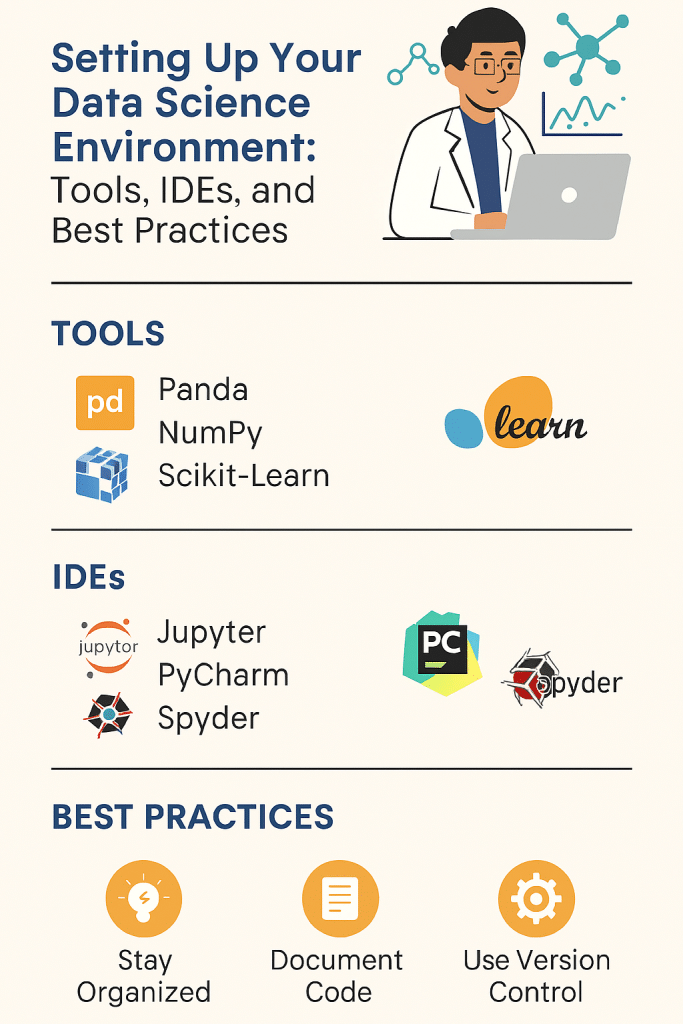
How to Setting up your data science environment is the foundation of successful machine learning projects and data analysis workflows. Whether you’re a beginner starting your data science journey or an experienced practitioner optimizing your development stack, having the right tools, IDEs, and configuration can dramatically improve your productivity and code quality.
In this comprehensive guide, we’ll walk through everything you need to know about creating an efficient data science workspace, from selecting the best Python IDEs to implementing version control and containerization best practices. By the end of this article, you’ll have a complete roadmap for building a professional-grade data science environment.
Why a Proper Data Science Environment Matters
A well-configured data science environment offers numerous advantages:
Productivity Enhancement: The right IDE with code completion, debugging tools, and integrated documentation can reduce development time by 40-50%. Features like intelligent code suggestions and error highlighting help you write cleaner code faster.
Reproducibility: Virtual environments and containerization ensure that your analysis produces consistent results across different machines and team members. This is critical for collaborative projects and production deployment.
Dependency Management: Modern data science projects rely on dozens of libraries with complex interdependencies. Proper package management prevents version conflicts and the infamous “works on my machine” syndrome.
Collaboration: Version control systems like Git enable seamless team collaboration, code review, and project tracking. Combined with cloud platforms, teams can work together regardless of geographic location.
Scalability: A thoughtfully designed environment can easily scale from local development to cloud-based distributed computing as your data and computational needs grow.
Essential Programming Languages
Python: The Industry Standard
Python has emerged as the dominant language for data science, with over 66% of data scientists using it as their primary language according to recent surveys. Its extensive ecosystem includes powerful libraries for every stage of the data science pipeline.
Key advantages:
- Simple, readable syntax ideal for rapid prototyping
- Massive ecosystem with 300,000+ packages on PyPI
- Strong community support and extensive documentation
- Seamless integration with big data frameworks
Recommended Python version: Python 3.9 or higher (Python 3.11+ offers significant performance improvements)
R: Statistical Computing Powerhouse
R remains the go-to choice for statistical analysis and academic research, particularly in fields like biostatistics and econometrics. Its ggplot2 visualization library is considered the gold standard for publication-quality graphics.
When to use R:
- Advanced statistical modeling and hypothesis testing
- Bioinformatics and genomic data analysis
- Creating sophisticated data visualizations
- Working with time series and econometric models
SQL: Database Querying Essential
SQL knowledge is non-negotiable for data scientists. Approximately 80% of data science work involves data extraction and preparation, making SQL proficiency critical.
Modern SQL variants to know:
- PostgreSQL for relational databases
- MySQL for web applications
- SQLite for lightweight local storage
- Apache Spark SQL for big data processing
Core Data Science Tools and Libraries
Python Libraries Ecosystem
Data Manipulation:
python
# NumPy - Numerical computing foundation
import numpy as np
array = np.array([1, 2, 3, 4, 5])

# Pandas - Data manipulation and analysis
import pandas as pd
df = pd.read_csv('data.csv')
Machine Learning:
python
# Scikit-learn - Classical machine learning
from sklearn.model_selection import train_test_split
from sklearn.ensemble import RandomForestClassifier

# TensorFlow/Keras - Deep learning
import tensorflow as tf
from tensorflow import keras

# PyTorch - Research and production ML
import torch
import torch.nn as nn
Visualization:
python
# Matplotlib - Foundation plotting library
import matplotlib.pyplot as plt

# Seaborn - Statistical visualization
import seaborn as sns

# Plotly - Interactive visualizations
import plotly.express as px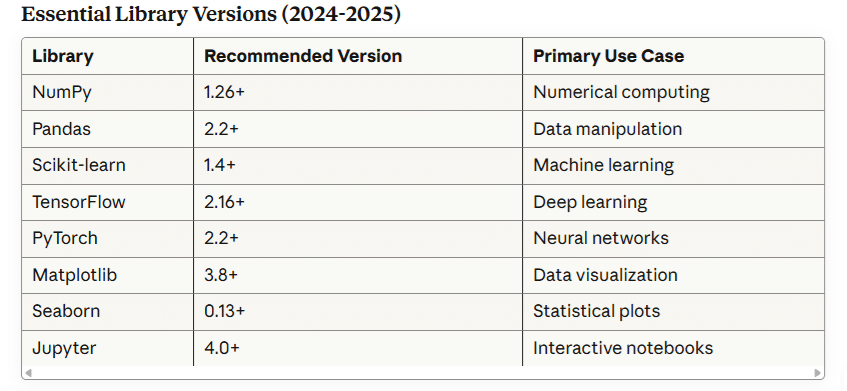
Top IDEs for Data Science
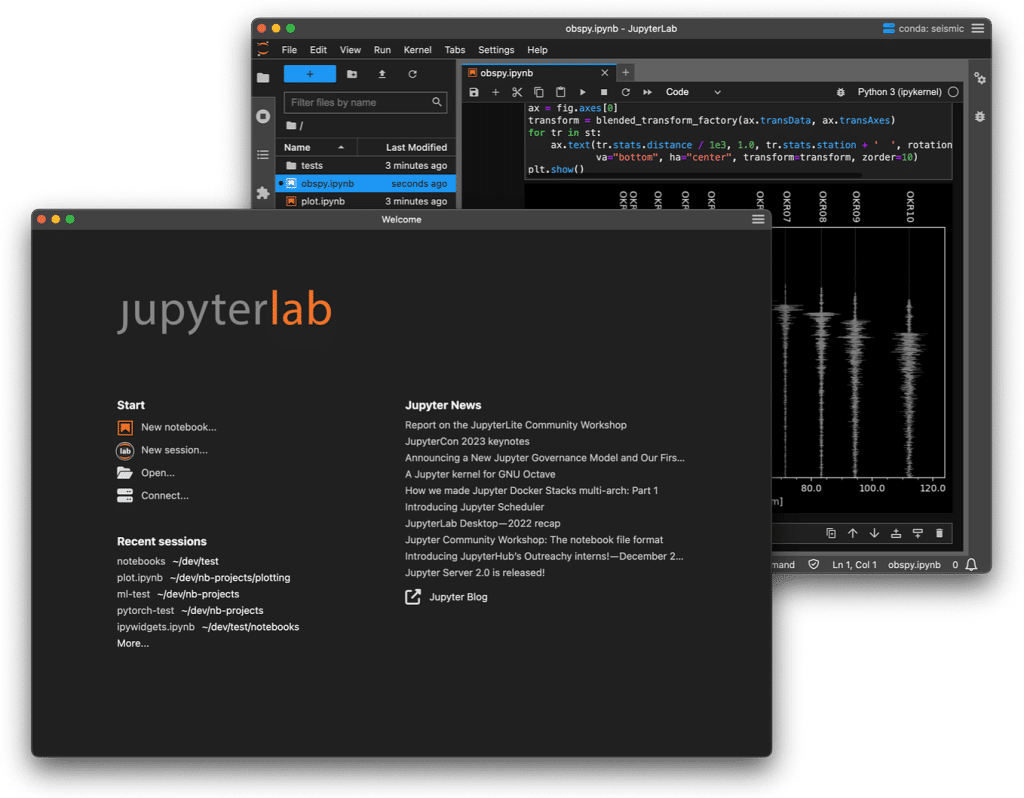
Jupyter Notebook/JupyterLab
Best for: Interactive data exploration, creating shareable reports, teaching
Jupyter revolutionized data science by combining code, visualizations, and narrative text in a single document. JupyterLab is the next-generation interface with enhanced features.
Key features:
- Cell-based execution for iterative development
- Inline data visualization
- Markdown support for documentation
- Extension ecosystem with 200+ plugins
- Integration with version control
Setup example:
bash
# Install JupyterLab
pip install jupyterlab

# Launch JupyterLab
jupyter lab

# Access at http://localhost:8888
Visual Studio Code (VS Code)
Best for: Full-stack data science projects, production code development
VS Code has become the most popular code editor, with over 14 million users. Its Python extension provides excellent data science support.
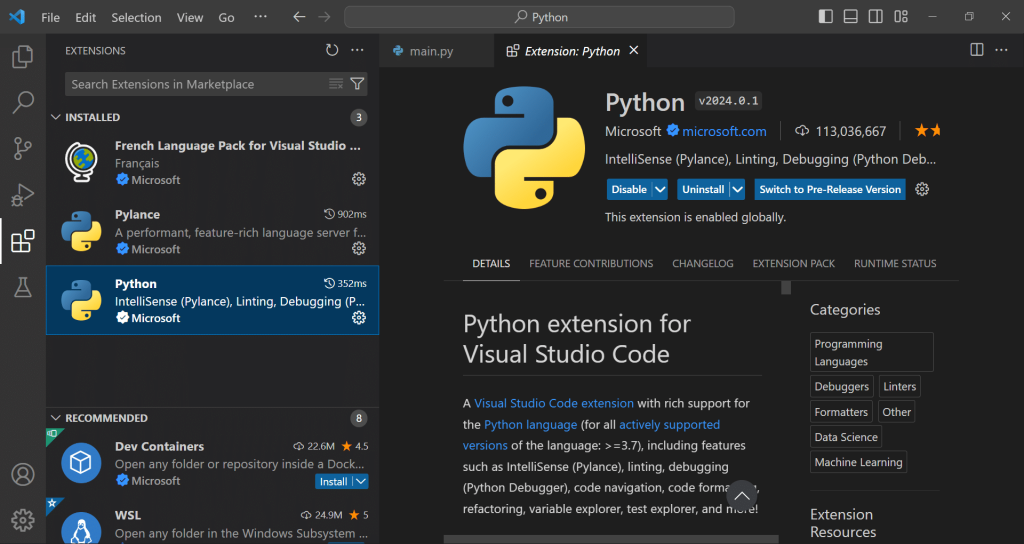
Essential extensions:
- Python (Microsoft) – Core Python support
- Jupyter – Native notebook support
- Python Docstring Generator – Documentation automation
- GitLens – Enhanced Git integration
- Remote Development – Work on remote servers
Configuration snapshot:
json
{
  "python.linting.enabled": true,
  "python.linting.pylintEnabled": true,
  "python.formatting.provider": "black",
  "editor.formatOnSave": true,
  "jupyter.askForKernelRestart": false
}
PyCharm Professional
Best for: Large-scale projects, professional development teams
JetBrains PyCharm offers powerful debugging, database tools, and scientific computing features in its Professional edition.
Professional features:
- Integrated database tools
- Remote development capabilities
- Scientific mode with SciView panel
- Advanced debugging and profiling
- Docker and Kubernetes integration
Student tip: Free educational licenses available for students and educators.
Spyder
Best for: MATLAB users transitioning to Python, variable exploration
Spyder provides a MATLAB-like interface that’s familiar to scientists and engineers.
Unique features:
- Variable explorer with array viewing
- Integrated IPython console
- Built-in profiler
- Help pane with documentation
Google Colab
Best for: GPU/TPU access, collaboration, zero-setup environment
Google Colab provides free cloud-based Jupyter notebooks with GPU acceleration.
Advantages:
- Free GPU (up to 12 hours) and TPU access
- Pre-installed data science libraries
- Easy sharing and collaboration
- Integration with Google Drive
- No local installation required
Package Management and Virtual Environments
Understanding Virtual Environments
Virtual environments isolate project dependencies, preventing conflicts between different projects. This is crucial when Project A requires TensorFlow 2.10 while Project B needs TensorFlow 2.16.
Using venv (Built-in Python)
bash
# Create virtual environment
python -m venv myproject_env

# Activate on Windows
myproject_env\Scripts\activate

# Activate on macOS/Linux
source myproject_env/bin/activate

# Install packages
pip install pandas numpy scikit-learn

# Save dependencies
pip freeze > requirements.txt

# Deactivate
deactivate
Conda: The Data Science Standard
Conda excels at managing complex scientific libraries with C dependencies.
bash
# Create environment with specific Python version
conda create -n datasci_env python=3.11

# Activate environment
conda activate datasci_env

# Install packages from conda-forge
conda install -c conda-forge pandas numpy scikit-learn

# Export environment
conda env export > environment.yml

# Create from environment file
conda env create -f environment.yml
Poetry: Modern Dependency Management
Poetry offers deterministic builds and elegant dependency resolution.
bash
# Install Poetry
curl -sSL https://install.python-poetry.org | python3 -

# Initialize project
poetry init

# Add dependencies
poetry add pandas numpy scikit-learn

# Install with locked versions
poetry install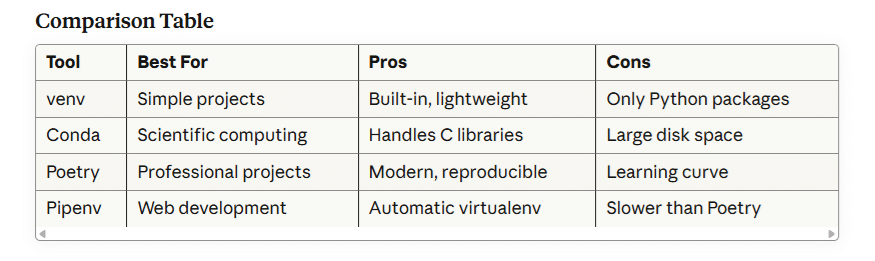
Version Control with Git
Why Git is Non-Negotiable
Version control is essential for tracking changes, collaborating, and maintaining code history. Git is used by 95% of professional developers.
Git Setup for Data Science
bash
# Install Git
# Windows: Download from git-scm.com
# macOS: brew install git
# Linux: sudo apt-get install git

# Configure Git
git config --global user.name "Your Name"
git config --global user.email "your.email@example.com"

# Initialize repository
git init

# Create .gitignore for data science
cat > .gitignore << EOF
# Python
__pycache__/
*.py[cod]
*.so
.Python
venv/
.env

# Jupyter
.ipynb_checkpoints/
*.ipynb_checkpoints

# Data files
*.csv
*.xlsx
*.h5
*.pkl
data/
models/

# IDE
.vscode/
.idea/
EOF
Essential Git Workflow
bash
# Check status
git status

# Stage changes
git add .

# Commit with message
git commit -m "Add feature engineering pipeline"

# Create branch for new feature
git checkout -b feature/model-optimization

# Push to remote
git push origin feature/model-optimization

# Pull latest changes
git pull origin main
GitHub Best Practices
- Use meaningful commit messages: “Fix random forest hyperparameters” not “fixed stuff”
- Branch strategy: main/master for production, develop for integration, feature branches for new work
- Pull requests: Enable code review and discussion
- README.md: Document setup instructions and project overview
- Ignore large files: Use Git LFS for datasets over 100MB
Cloud-Based Development Environments
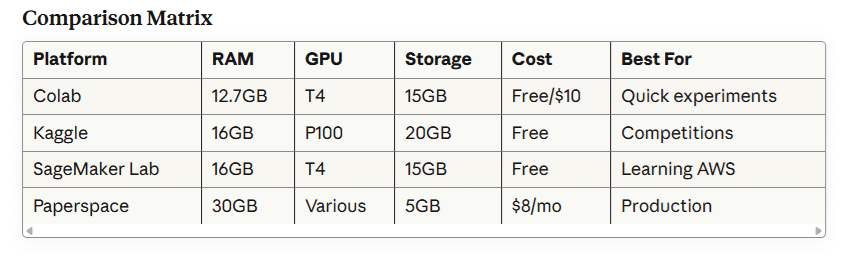
Google Colab
Specifications:
- 12.7 GB RAM
- Tesla T4 GPU (free tier)
- 15 GB persistent storage
- Integration with Google Drive
Usage example:
python
# Mount Google Drive
from google.colab import drive
drive.mount('/content/drive')

# Check GPU availability
import tensorflow as tf
print("GPU Available:", tf.config.list_physical_devices('GPU'))
Kaggle Kernels
Features:
- 16 GB RAM
- NVIDIA Tesla P100 GPU
- 30 hours/week GPU time
- Access to Kaggle datasets
AWS SageMaker Studio Lab
Benefits:
- Free 12-hour sessions
- 15 GB storage
- CPU and GPU instances
- Professional development environment
Database Management Tools
SQL Clients
DBeaver – Universal database tool supporting 80+ databases
- Free and open-source
- Entity-relationship diagrams
- SQL editor with autocomplete
- Data visualization
pgAdmin – PostgreSQL administration
- Web-based interface
- Query tool and debugger
- Server monitoring
Python Database Connectors
python
# SQLite (built-in)
import sqlite3
conn = sqlite3.connect('database.db')

# PostgreSQL
import psycopg2
conn = psycopg2.connect(
    host="localhost",
    database="mydb",
    user="username",
    password="password"
)

# Using SQLAlchemy (ORM)
from sqlalchemy import create_engine
engine = create_engine('postgresql://user:pass@localhost/db')
df = pd.read_sql("SELECT * FROM table", engine)
Containerization with Docker
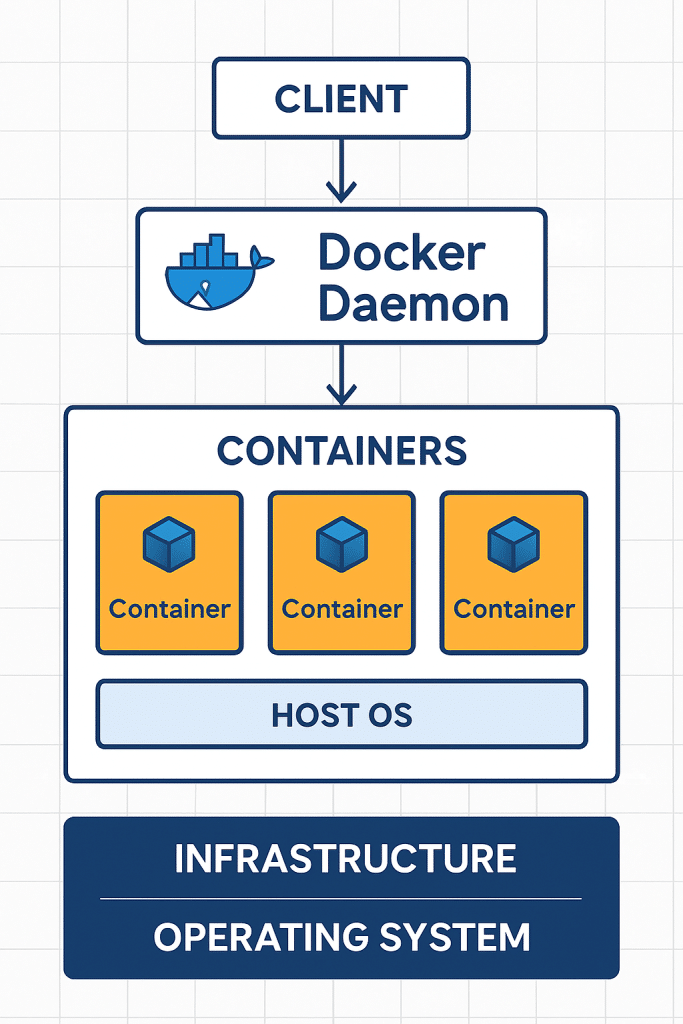
Why Docker for Data Science?
Docker ensures your environment works identically across development, testing, and production. It encapsulates all dependencies, eliminating environment-related bugs.
Sample Dockerfile
dockerfile
# Use official Python runtime
FROM python:3.11-slim

# Set working directory
WORKDIR /app

# Install system dependencies
RUN apt-get update && apt-get install -y \
    build-essential \
    && rm -rf /var/lib/apt/lists/*

# Copy requirements
COPY requirements.txt .

# Install Python packages
RUN pip install --no-cache-dir -r requirements.txt

# Copy project files
COPY . .

# Expose Jupyter port
EXPOSE 8888

# Start Jupyter
CMD ["jupyter", "lab", "--ip=0.0.0.0", "--allow-root"]
Docker Compose for Data Science Stack
yaml
version: '3.8'

services:
  jupyter:
    build: .
    ports:
      - "8888:8888"
    volumes:
      - ./notebooks:/app/notebooks
      - ./data:/app/data
    environment:
      - JUPYTER_ENABLE_LAB=yes

  postgres:
    image: postgres:15
    environment:
      POSTGRES_PASSWORD: password
    ports:
      - "5432:5432"
    volumes:
      - postgres_data:/var/lib/postgresql/data

volumes:
  postgres_data:
Best Practices for Environment Setup
1. Use Environment Configuration Files
Store environment variables in .env files:
bash
# .env file
DATABASE_URL=postgresql://user:pass@localhost/db
API_KEY=your_secret_api_key
MODEL_PATH=/models/production
Load in Python:
python
from dotenv import load_dotenv
import os

load_dotenv()
db_url = os.getenv('DATABASE_URL')
2. Document Your Environment
Create comprehensive README with:
- Python version requirements
- Installation instructions
- Environment variables needed
- Sample usage commands
- Troubleshooting tips
3. Pin Dependency Versions
txt
# requirements.txt with pinned versions
pandas==2.2.0
numpy==1.26.3
scikit-learn==1.4.0
4. Separate Development and Production
bash
# requirements.txt (production)
pandas==2.2.0
numpy==1.26.3

# requirements-dev.txt (development)
-r requirements.txt
pytest==7.4.3
black==23.12.1
pylint==3.0.3
jupyter==4.0.0
5. Implement Code Quality Tools
bash
# Format code with Black
black .

# Lint with Pylint
pylint src/

# Type checking with mypy
mypy src/

# Run tests
pytest tests/
6. Use Pre-commit Hooks
yaml
# .pre-commit-config.yaml
repos:
  - repo: https://github.com/psf/black
    rev: 23.12.1
    hooks:
      - id: black

  - repo: https://github.com/pycqa/pylint
    rev: v3.0.3
    hooks:
      - id: pylint
7. Organize Project Structure
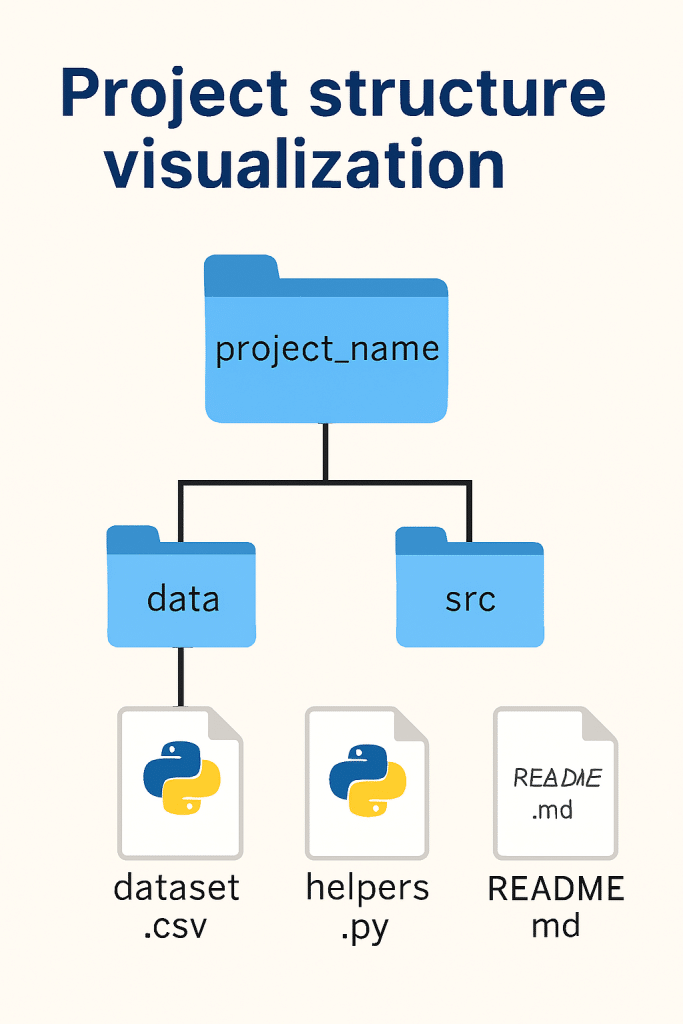
project/
│
├── data/
│   ├── raw/
│   ├── processed/
│   └── external/
│
├── notebooks/
│   ├── exploratory/
│   └── reports/
│
├── src/
│   ├── __init__.py
│   ├── data/
│   ├── features/
│   ├── models/
│   └── visualization/
│
├── tests/
├── models/
├── reports/
├── .env
├── .gitignore
├── requirements.txt
├── README.md
└── Dockerfile
Troubleshooting Common Issues
Package Installation Failures
Problem: pip install tensorflow fails with compiler errors
Solution:
bash
# Use conda for complex packages
conda install tensorflow

# Or use pre-built wheels
pip install --upgrade pip
pip install tensorflow --no-cache-dir
Version Conflicts
Problem: Multiple packages require different versions of dependencies
Solution:
bash
# Use pip-tools to resolve conflicts
pip install pip-tools
pip-compile requirements.in
pip-sync requirements.txt
Jupyter Kernel Not Found
Problem: Virtual environment not appearing in Jupyter
Solution:
bash
# Install ipykernel in environment
pip install ipykernel

# Add kernel to Jupyter
python -m ipykernel install --user --name=myenv --display-name "Python (myenv)"
Import Errors
Problem: ModuleNotFoundError despite package installation
Solution:
python
# Check Python path
import sys
print(sys.executable)
print(sys.path)

# Verify package installation
pip list | grep package_name
Memory Issues
Problem: MemoryError when loading large datasets
Solution:
python
# Use chunking for large files
chunk_size = 10000
chunks = pd.read_csv('large_file.csv', chunksize=chunk_size)
df = pd.concat([chunk for chunk in chunks])

# Use data types optimization
df = pd.read_csv('file.csv', dtype={'column': 'category'})
Conclusion
Setting up an efficient data science environment is an investment that pays dividends throughout your career. By following the practices outlined in this guide, you’ll create a robust, reproducible, and scalable workspace that enhances productivity and code quality.
Key takeaways:
- Choose your IDE based on project requirements (Jupyter for exploration, VS Code for production)
- Always use virtual environments to isolate dependencies
- Implement version control from day one
- Containerize for reproducibility and deployment
- Document everything for your future self and collaborators
- Keep learning and adapting as tools evolve
The data science ecosystem continues to evolve rapidly. Stay updated with the latest tools, regularly review your setup, and don’t hesitate to experiment with new approaches. Your environment should grow with your skills and project complexity.
Remember: the best environment is one that removes friction from your workflow, allowing you to focus on solving problems and extracting insights from data. Start simple, iterate often, and build complexity as needed.
Additional Resources
- Official Documentation: Python.org, Jupyter.org, Docker.com
- Community Forums: Stack Overflow, Reddit r/datascience, Kaggle Discussions
- Learning Platforms: DataCamp, Coursera, Fast.ai
- Package Repositories: PyPI, Conda-forge, GitHub